Guide
Live results inside PowerPoint
The Showhands add-in puts a small live panel on your slide. Votes move while you talk, in edit view and in slideshow mode.
Run your session
In the console, press Present on the deck you are running and note the six-letter join code.
Download the add-in
Use the button above. It downloads a small file called showhands-powerpoint.xml. That file is the installer, and it is all you need.
Add it to PowerPoint
In PowerPoint on your computer: Insert → Add-ins → My Add-ins → Upload My Add-in, and pick the file. (On some versions it sits under Insert → Get Add-ins → Upload My Add-in.)
Paste the code
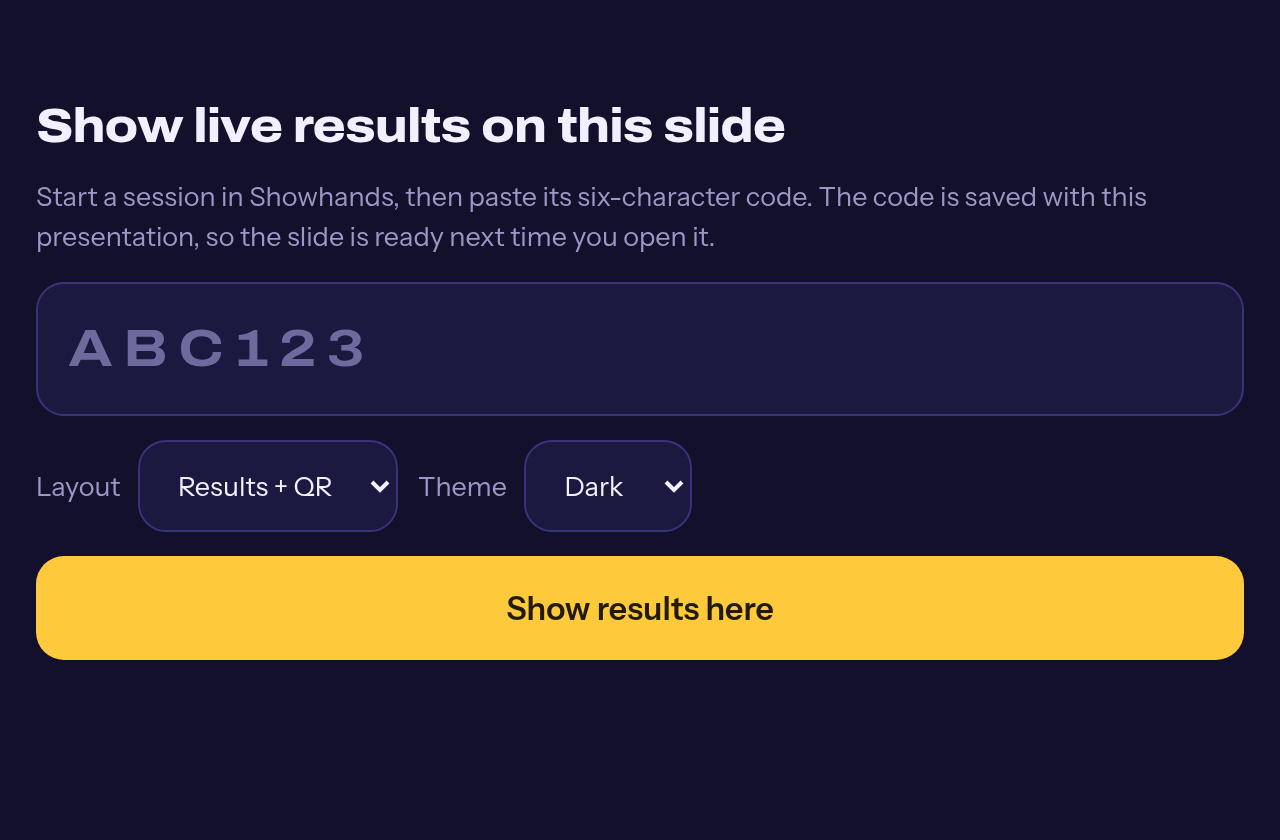
The panel lands on your slide. Paste the join code, pick a layout, and resize it like any other object.
Present
The panel keeps updating in slideshow mode. The room joins with the code or the QR shown on it.
Worth knowing
- The code is saved inside the presentation. Build the slide once, reuse it every time you run that deck.
- Works in desktop PowerPoint on Windows and Mac (Microsoft 365). PowerPoint in the browser can load the file too; desktop is the tested path.
- Google Slides? Google does not let any tool stream live content inside a slide. The Showhands add-on that draws results as real slide shapes is being prepared for Google’s marketplace. Today, put the QR code on the slide and keep the Showhands present view in a second window.
The same join code also powers the other slide embeds (Canva, Notion, Miro). Find them in the console under Slide embeds.